Sift & Sweep Windows · free · no account

Two ways to stop drowning in files.

One sorts what you keep, one clears what you don’t need. Both run on your machine, both ask before they move anything, and neither one ever really deletes a thing. Everything lands somewhere you can still get back.

24 MB
Sift installer, no dependencies to fetch
16 MB
Sweep installer, smaller still
12
File types Sift sorts into, out of the box
7
Kinds of clutter Sweep knows to look for
Sift Swipe to sort

Tinder for the files you keep avoiding.

Point Sift at a folder and it shows you one file at a time: full preview, size, date, where it’s headed. Swipe right to keep, left to trash, up to skip. Keepers settle into folders you chose upfront; nothing’s gone until you empty the trash folder yourself.

Why it exists

A folder of 500 photos is 500 separate decisions: open it, look, decide, drag it somewhere. Most people get through the first forty and give up.

~4× faster than doing it by hand

Rough math, not a measurement (neither app phones home). Reviewing and dragging one file by hand runs about 8 to 10 seconds once you count opening it, deciding, and moving it. A swipe or an arrow key is closer to 2. Across 500 files, that’s roughly 75 minutes of clicking against about 15.
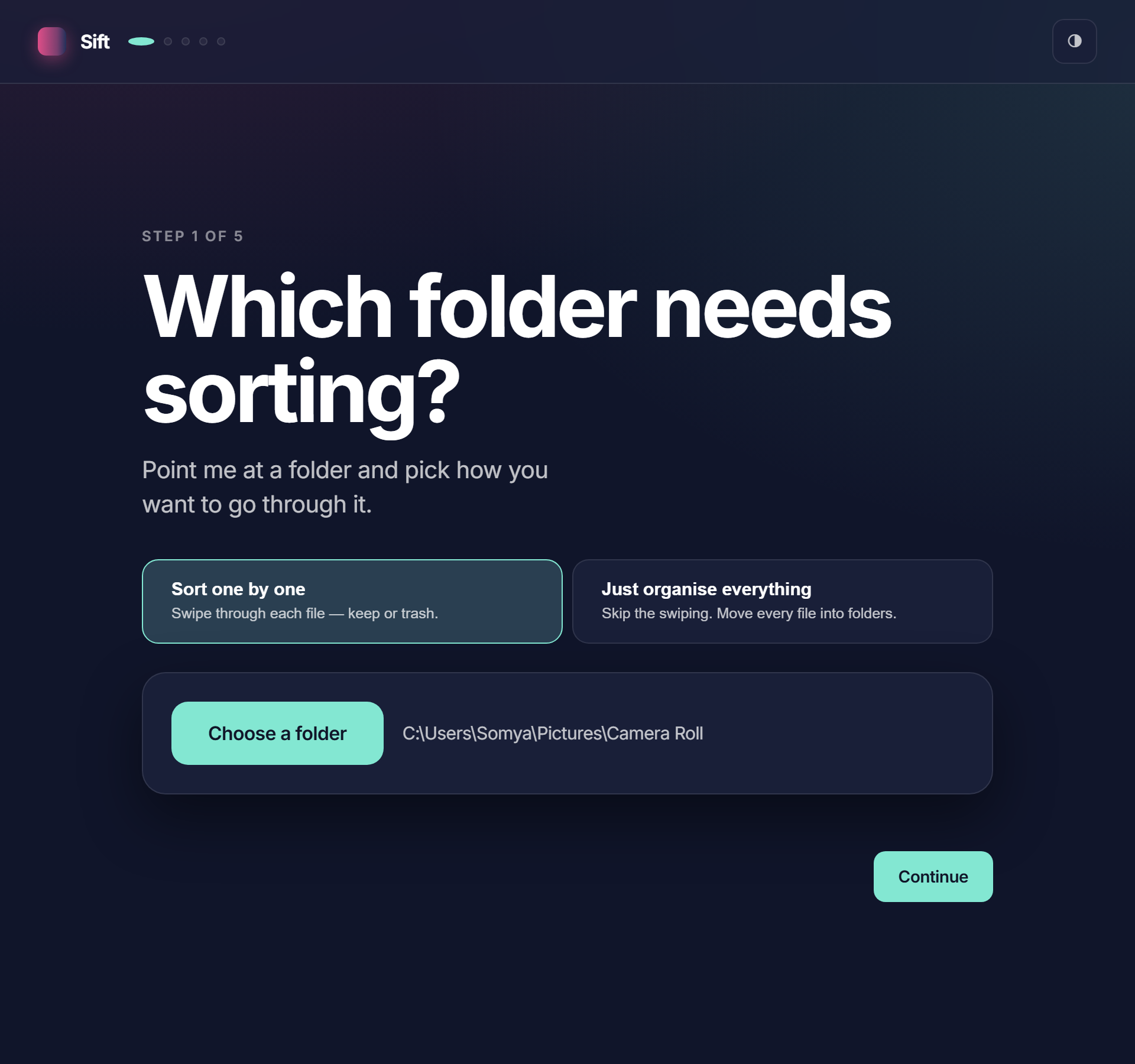
1 Sift's first screen, choosing a folder and whether to sort file by file or organise everything at once
Point it somewhere. Sort one by one, or skip straight to organising everything.
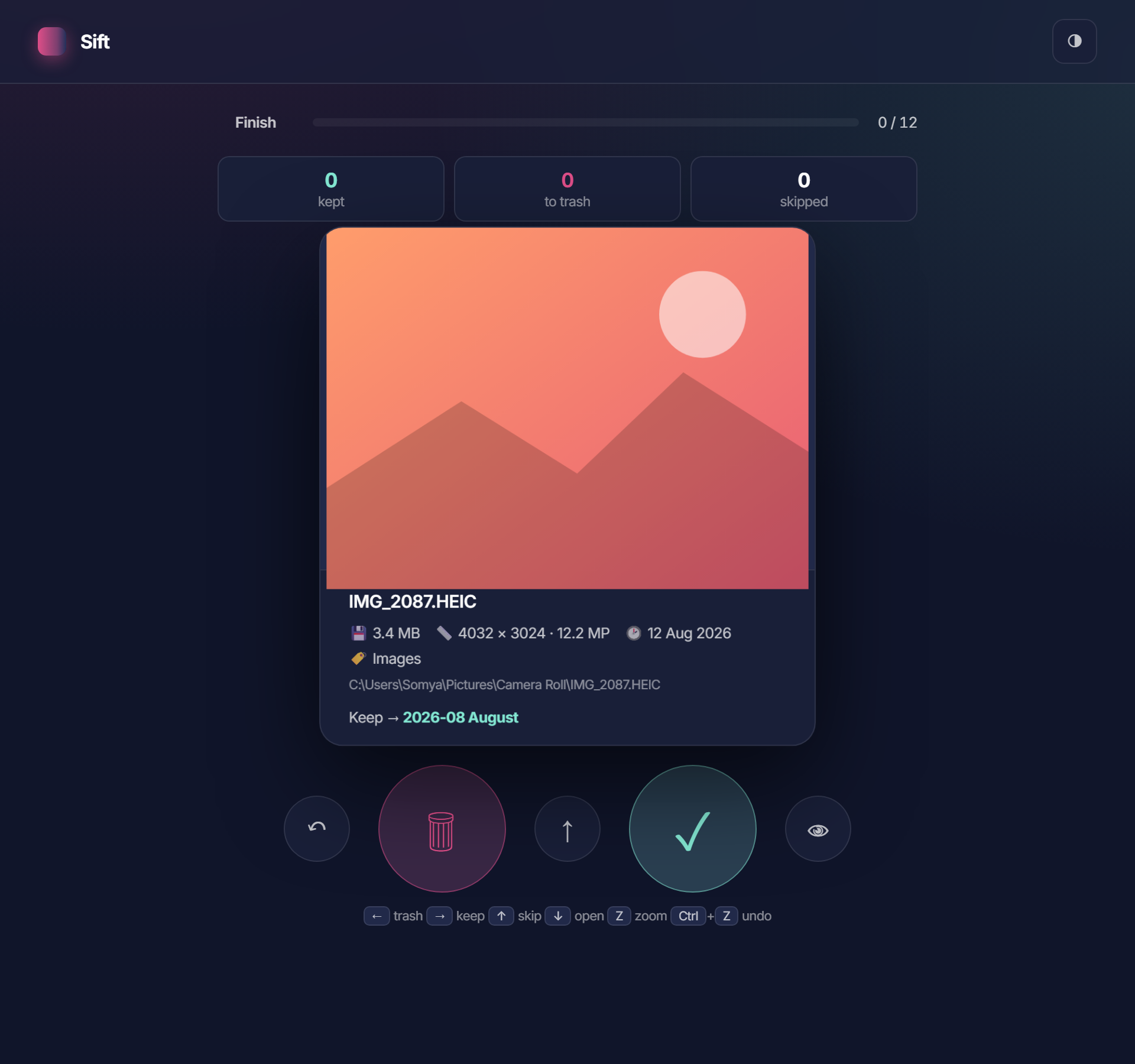
2 Sift's swipe screen: a photo card mid-review, with keep, trash, skip and undo controls below it
One file, one decision. The full preview, then keep, trash, or skip. Arrow keys work too.
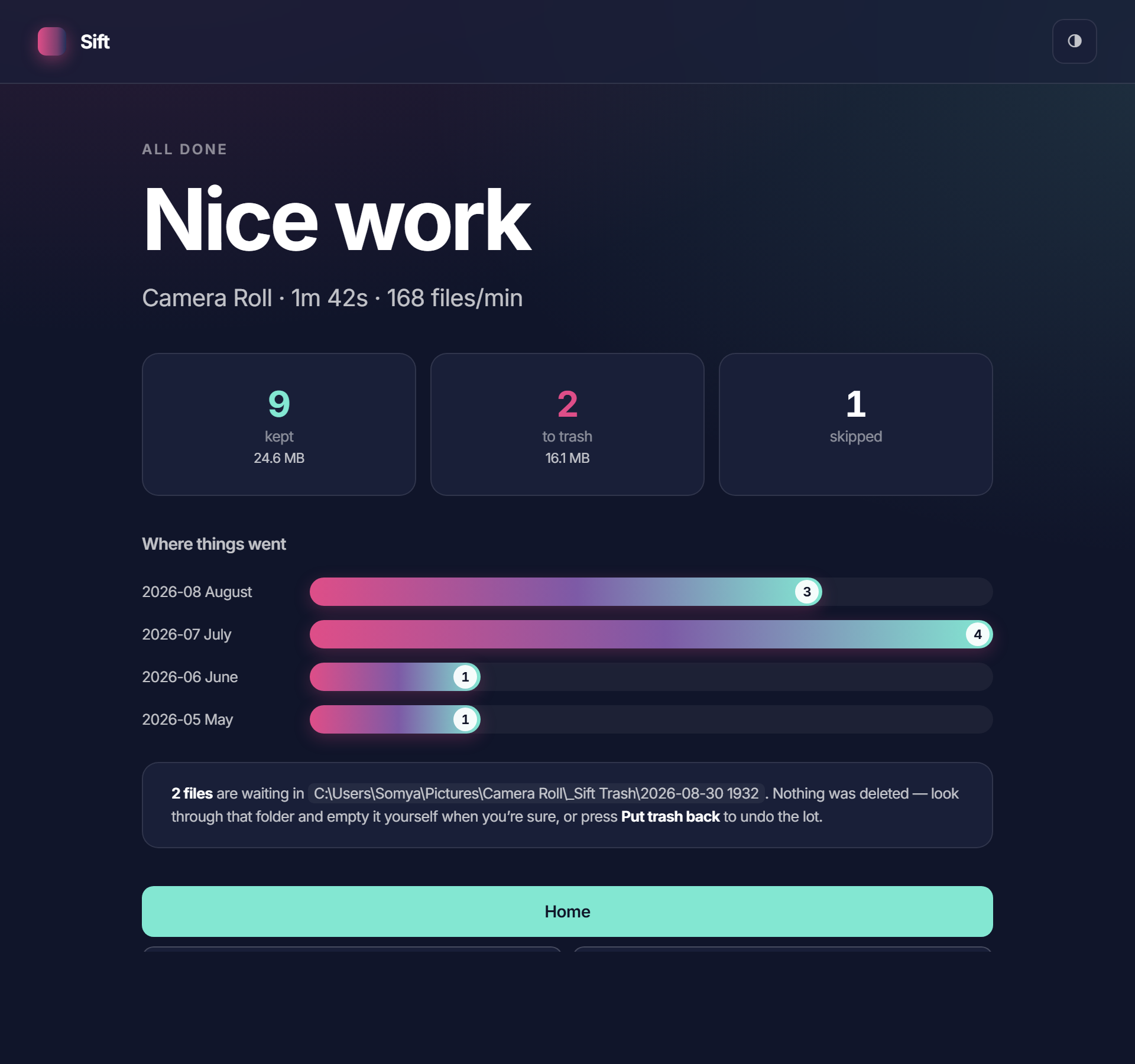
3 Sift's summary screen showing files kept, trashed and skipped, plus a breakdown of which month folder each keeper landed in
A clear recap. What was kept, what’s waiting in the trash, where everything landed.
Nothing deleted: trash is just another folder, dated and undoable
Ctrl+Z undoes the last decision, mid-sort or after
File by file, or one click to organise the whole folder
Download for Windows Source Packaging the installer. Check back soon.
Sweep One click, and the folder behaves

The clutter you never meant to keep.

Empty folders, Thumbs.db, half-finished downloads, old installers, exact duplicates. Sweep finds it all, shows you the full plan and the size before it moves a single file, and only acts once you say go.

Why it exists

Clutter never announces itself. An empty folder, a stray Thumbs.db, a near-duplicate photo. Finding what’s safe to remove means opening every folder and sorting by size, by hand.

<1 min to see the whole plan, not just a guess

Rough math, not a measurement: a Downloads folder left alone for a year easily holds a few hundred stray files across dozens of sub-folders. Hunting through that by hand, checking each candidate before deleting it, runs 20 to 30 minutes, if you ever get around to it. Sweep’s scan takes under a minute and shows every byte before it moves anything.
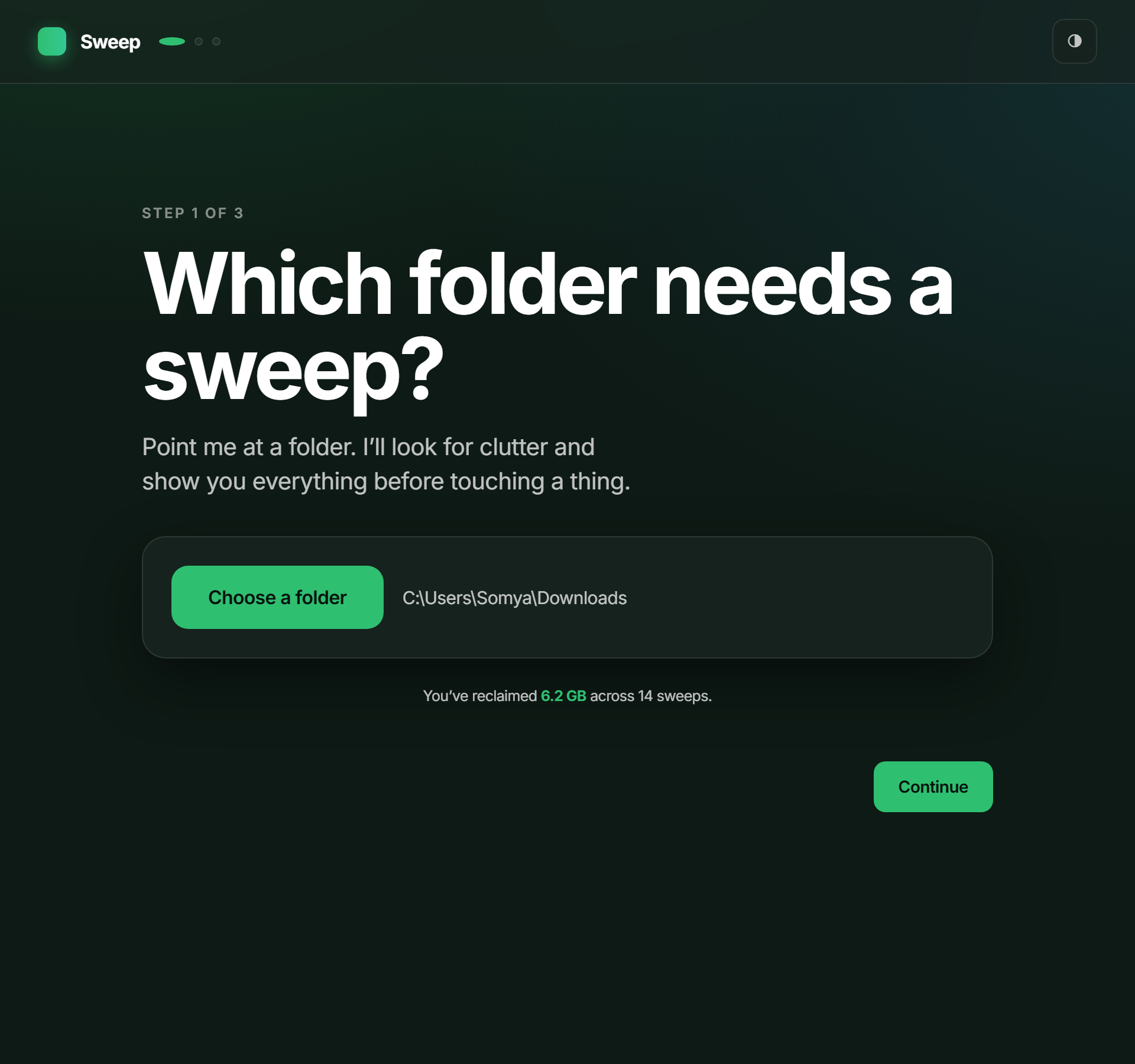
1 Sweep's first screen, choosing a folder to clean, with a lifetime total of space reclaimed across past sweeps
Pick a folder. It remembers what you’ve reclaimed across every past sweep.
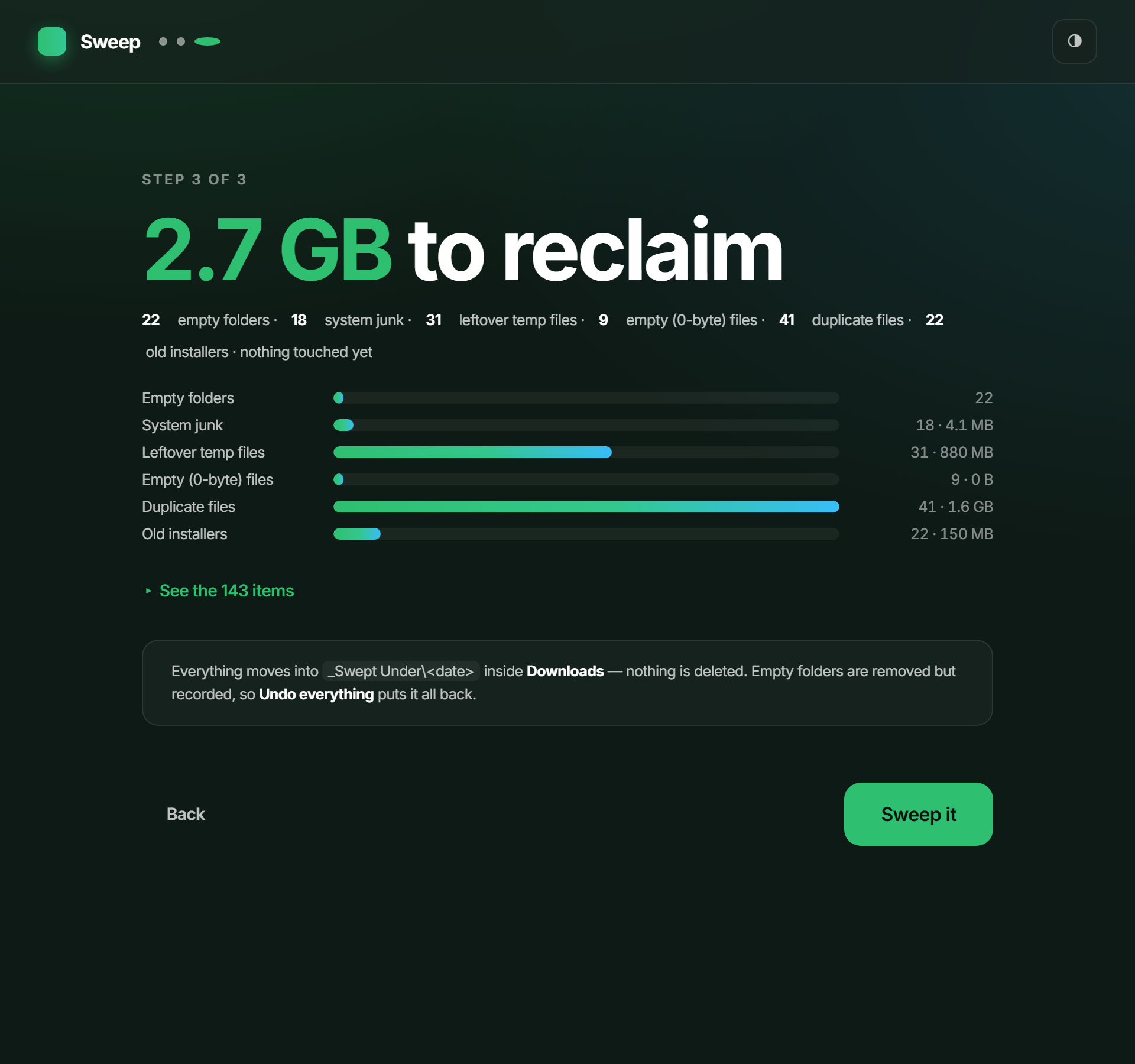
2 Sweep's preview screen: 2.7 GB to reclaim, broken into categories like duplicates, temp files and old installers, with a Sweep it button
The whole plan, first. Every category, every byte, before anything moves.
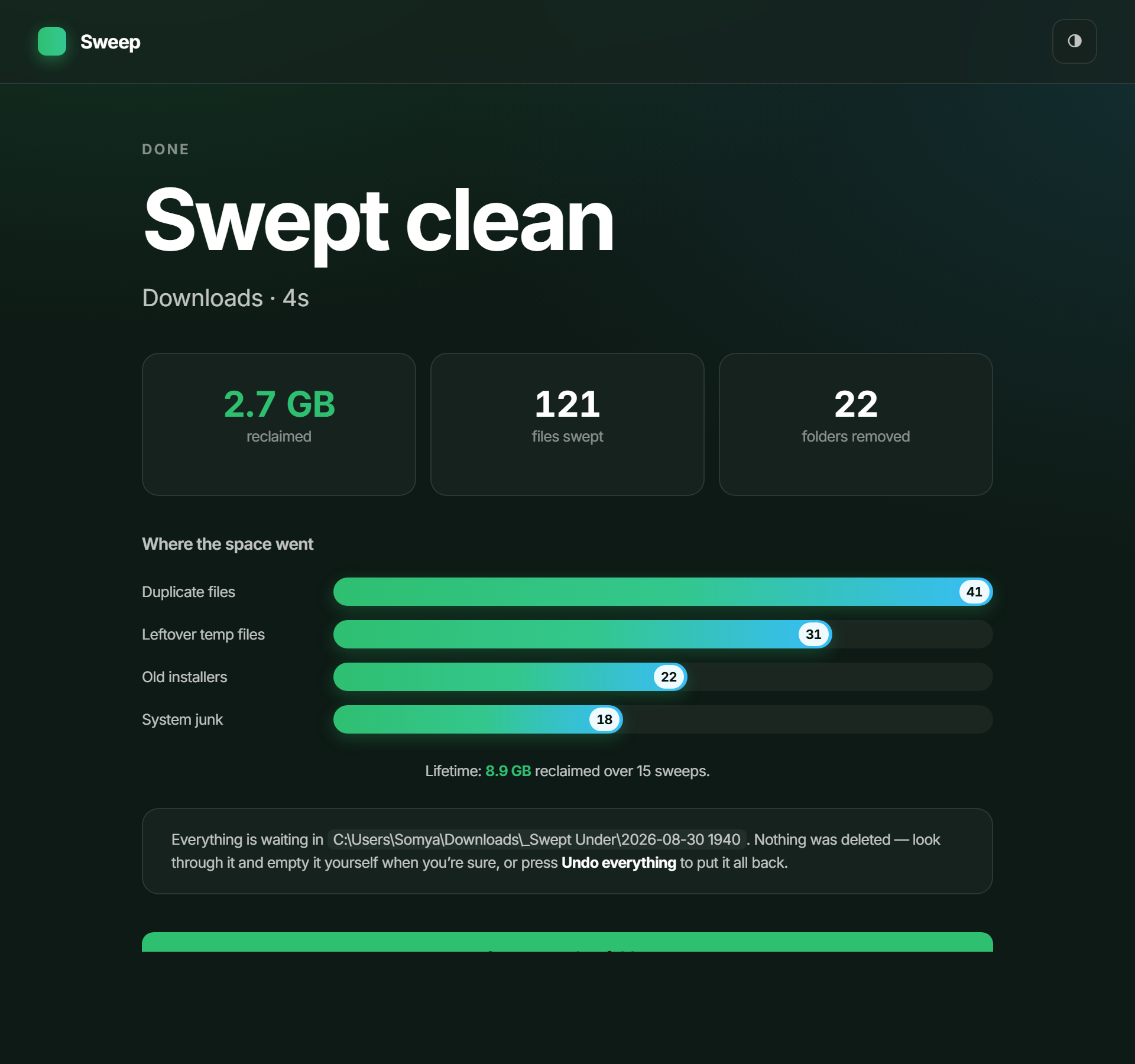
3 Sweep's summary screen: 2.7 GB reclaimed, 121 files swept, 22 folders removed, with a breakdown of where the space went
Swept clean. Exactly what moved, and one button to put it all back.
Every pass previews first: nothing moves until you press Sweep it
Swept files move to one dated folder; Undo everything puts them back
Conservative by default: duplicates and stale files are opt-in
Download for Windows Source Packaging the installer. Check back soon.
Back to the rest of it